
CTV Integration Guide
Singular x Smadex
This guide outlines the steps marketers need to create and integrate their Connected TV (CTV) campaigns in Singular using Smadex. It is fundamental to follow these steps in order to be able to correctly track installs in your Smadex CTV campaign, as CTV installs are based on cross-platform attribution by Singular.
Step 1: Create a tracking link in Singular
- Sign in to Singular and select your own account.
- Select Smadex from the list.
- Besides all postback configuration, ensure to have the next boxes ticked:

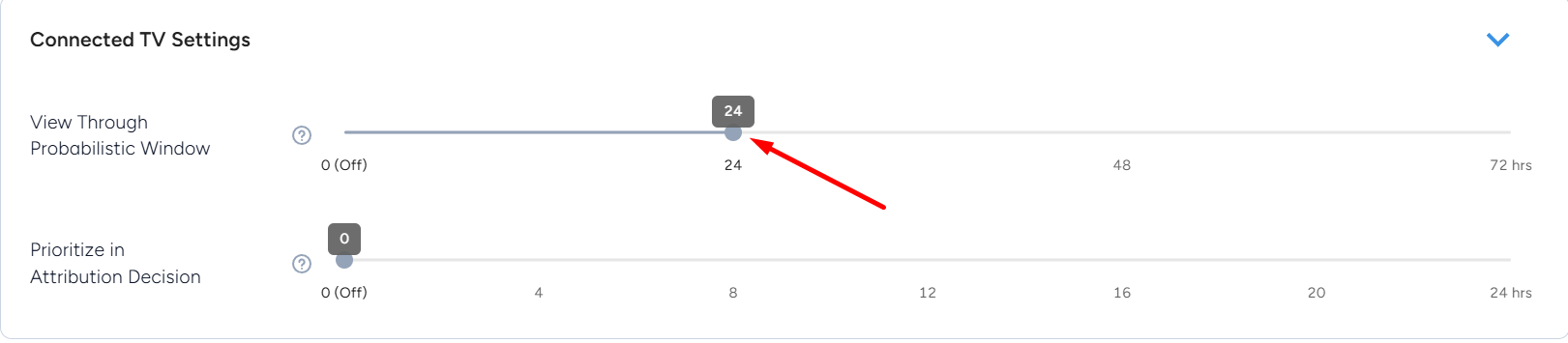
4. Under Connected TV Settings, ensure you have the View Through Probabilistic Window. The minimum is 24h, but you can set a custom window of 1-72 hours
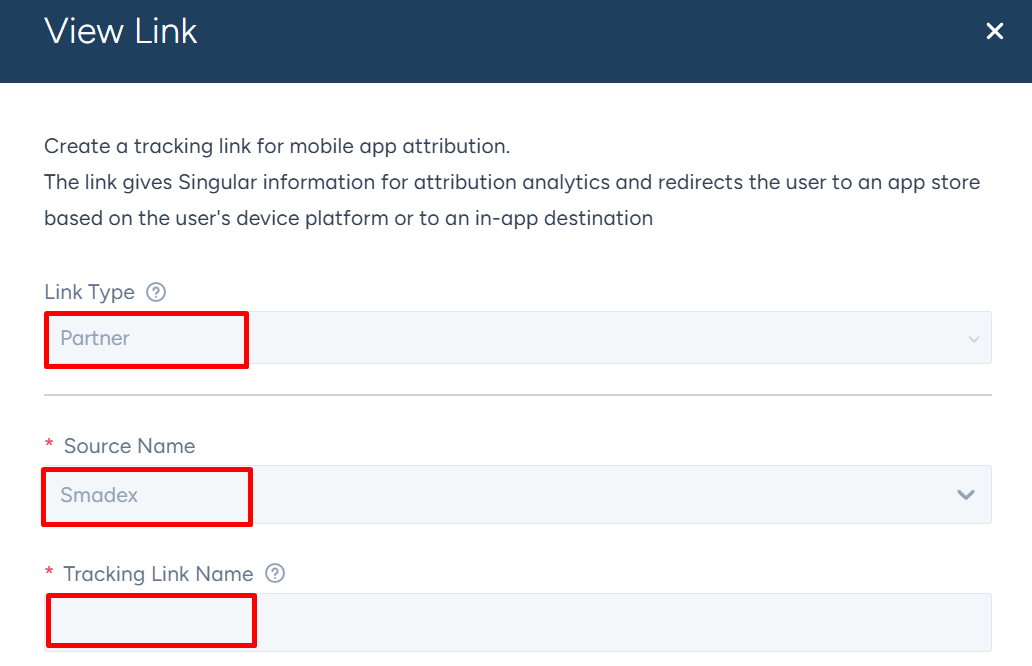
5. Go under Attribution Setup – Manage Links. Then, click Create Link. For Link Type, choose Partner. For Source Name, choose “Smadex” from the dropdown menu. For Tracking Link Name, enter a descriptive title for the tracking link to easily tell apart from any other links you might have under the app.
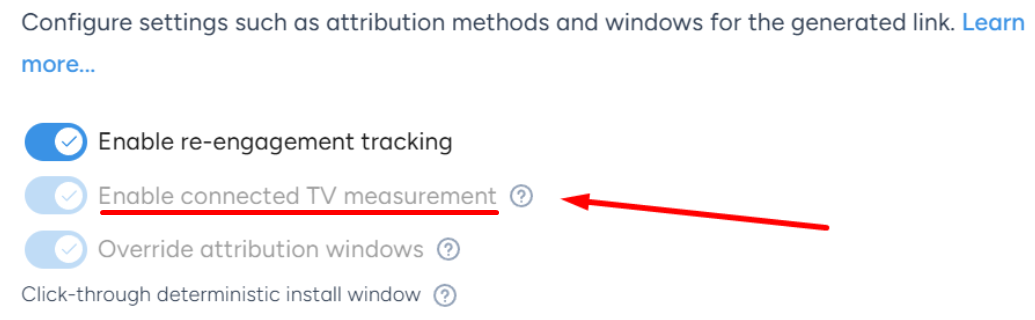
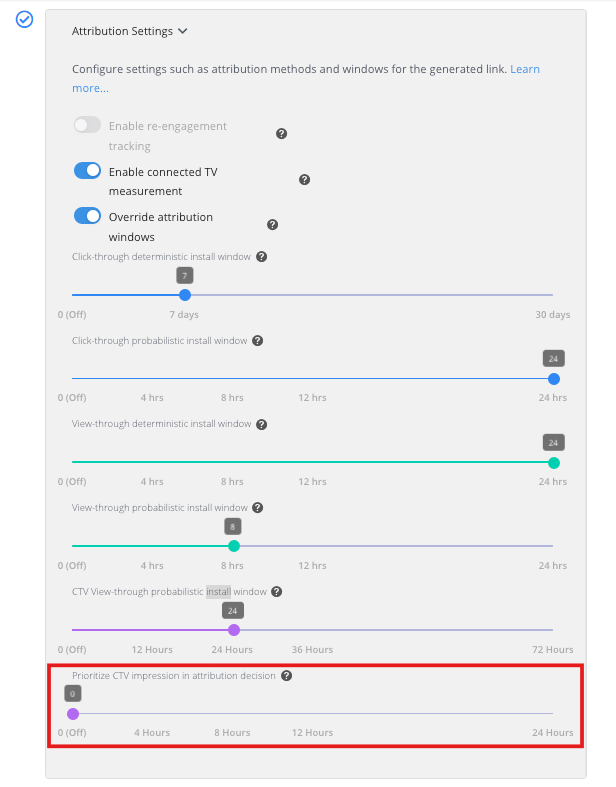
6. Click Attribution Settings and toggle on Enable connected TV measurement. Ensure that the view-through probabilistic install window is at least set to 24 hours, even you can set it up to 72h.
7. Click in Link Summary to review the links and then Done to save changes. It should look something like:
https://i.sng.link/Dczu7/tie9?_smtype=3&idfa=&andi=&ifa1=&ifa5=&and5=&aifa=&aif1=&aif5=&s=&pcn=&pshid=&cl=&paffn=&psn=&ve=&andi1=&paffid=&pc=&pcrn=&cr=&p=ctv&psid=&ip=&pcid=&pcrid=&pscid=
Note: the same link can be used for iOS and Android.
- Review your link settings and select Create link.
- Repeat the process for any other app you may have.
Step 2: Testing, Validation & Troubleshooting
- Share your Impression attribution Link with Smadex. Smadex will perform a test install to confirm everything is in place. With the agreed creatives to post
- In case the test install is not successful, either the initial integration is not correct, or any step of this guide was not applied correctly. Review all the steps and make sure it’s all in place.
- If issues further persist, contact Smadex and Singular for further assistance.
FAQs
- You only need to create one tracking impression link for CTV campaigns and enable the tracking link for both iOS and Android by configuring Link Settings and Redirects for both iOS and Android.
- You can use the same impression link for both CTV and mobile advertising. For example, if you create a campaign for your mobile game, you can run it on your network partner’s Samsung TV app as well as your partner’s iOS and Android mobile apps
- A “p=” parameter may be present on the impression URL and is used to help Singular identify the platform the impression is served on to enable the correct attribution method. Ensure that only the following supported values are used: “iOS”, “Android”,”ctv.”
@2026 Entravision Communications Corporation. All rights reserved
Privacy Policy | Brand Safety Policy | Legal Notice | Information Security Policy | Cookies Policy